Normcore Multi-media Banner
About Normcore Multi-media Banner Section
The Normcore Multi-media banner Section is a versatile and engaging feature that brings a dynamic visual storytelling experience to your website. Much like the powerful Image Banner Section, the Multi-media banner Section allows you to captivate your visitors with different items on each banner, making it an ideal tool for:
- Highlighting your product collections
- Showcasing your brand's unique story
- Displaying impactful customer testimonials
- Presenting the key features of your offerings
- Creating immersive marketing narratives
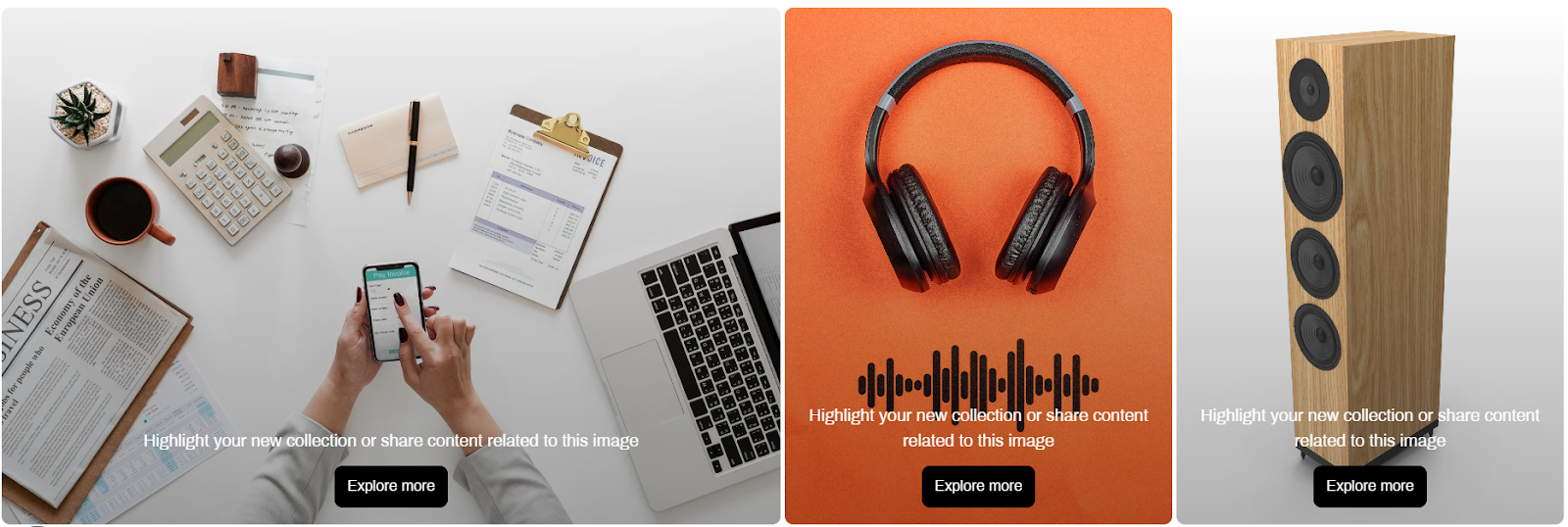
How to access Multi-media Banner Section
- On any page type, click the "Add section" button
- Search for "Multi-media banner"
- Select to add the section to your page
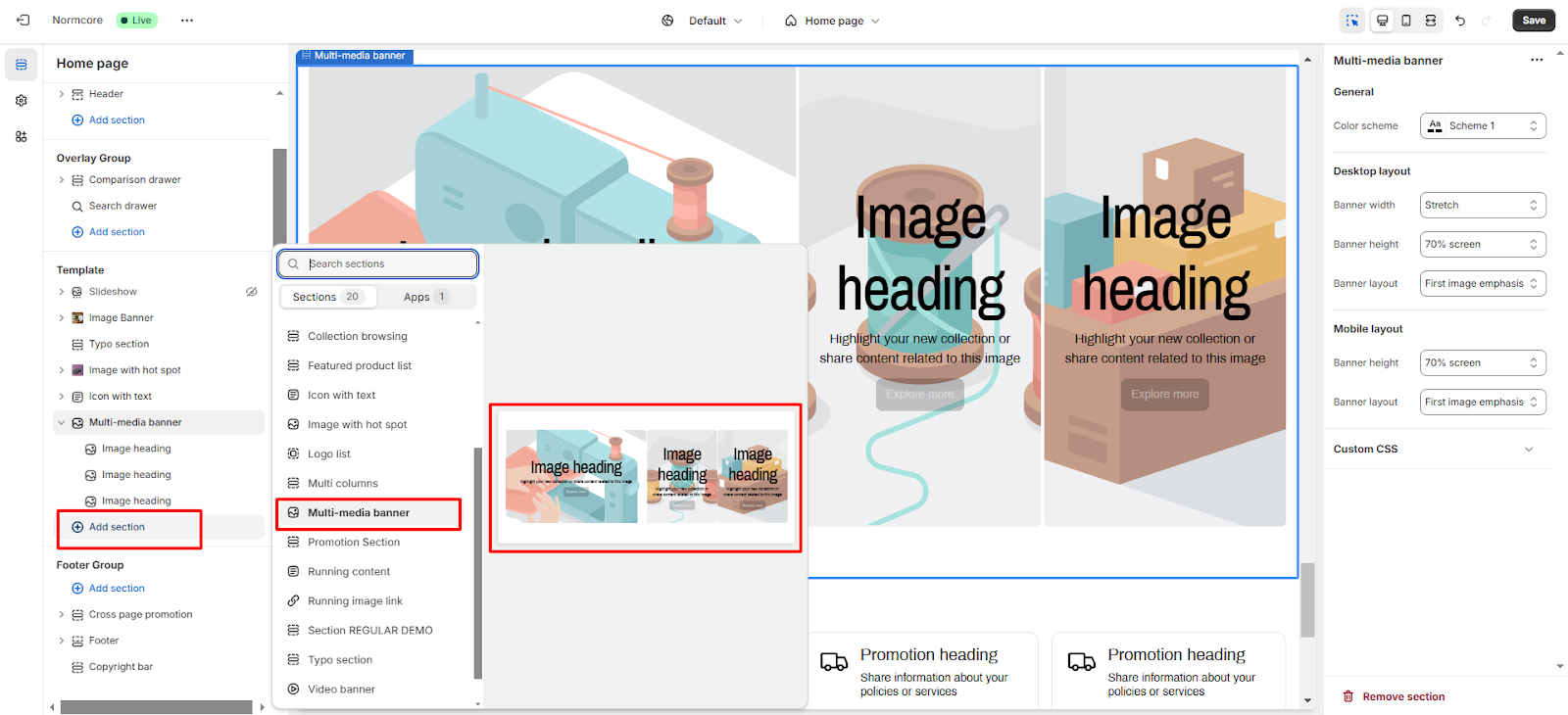
By choosing the section on the left outline menu, you can set up the below values:
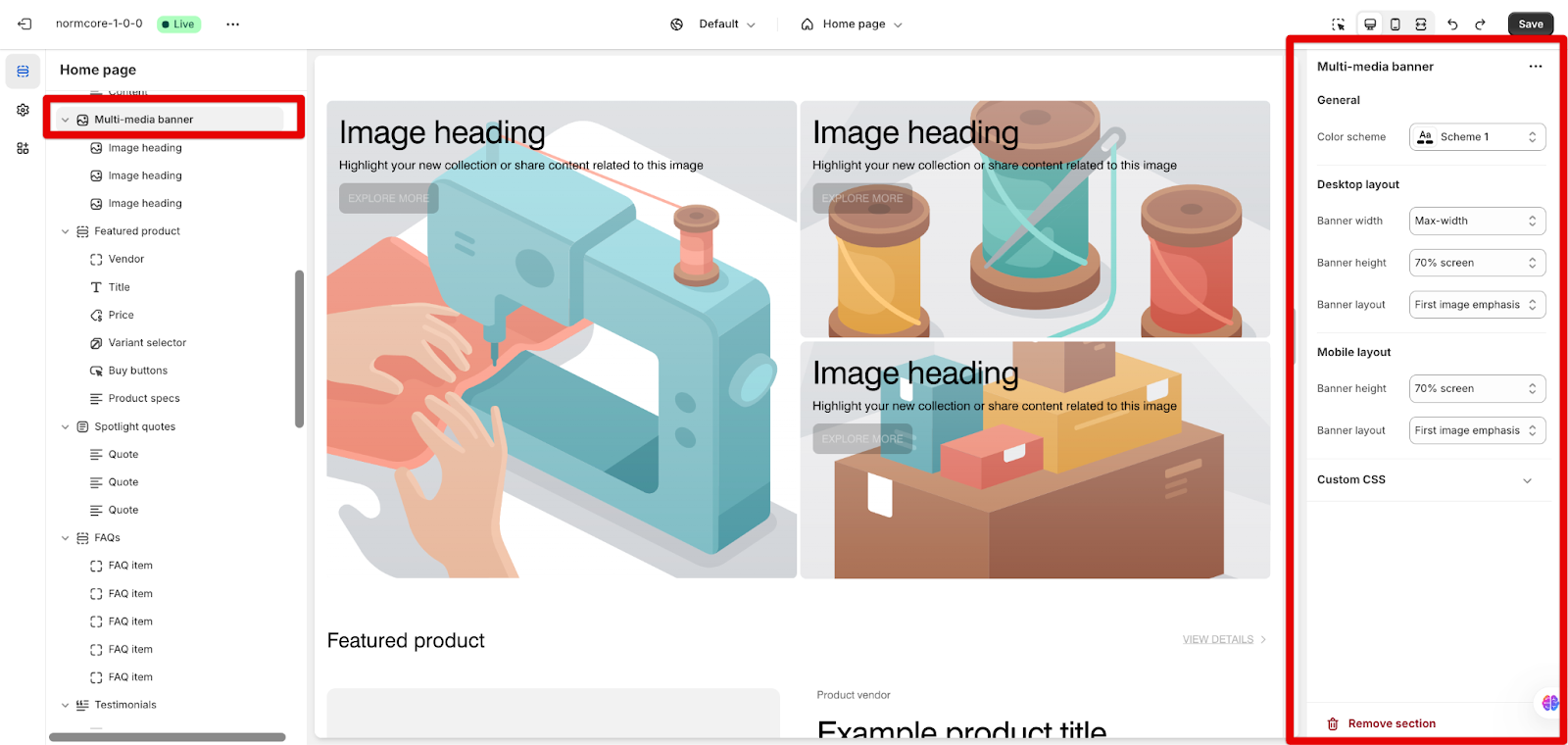
General
You can set up Color Scheme to set the background color for Multi-media banner section and the text content color.
Desktop Layout
- On the desktop layout, we have options to change the width and height of the banner.
- In addition, we have the "Banner layout" option to arrange the layout as desired.
Mobile Layout
Similar to Desktop layout, we also have options to customize height and layout in the mobile layout.
How to Configure Image/ Video Block
The Multi-media Banner section is designed with a fixed structure, allowing for only three blocks at any given time. You can freely delete, add, and reposition these existing blocks to customize the banner. However, to incorporate a different block type, one of the current blocks must first be removed.
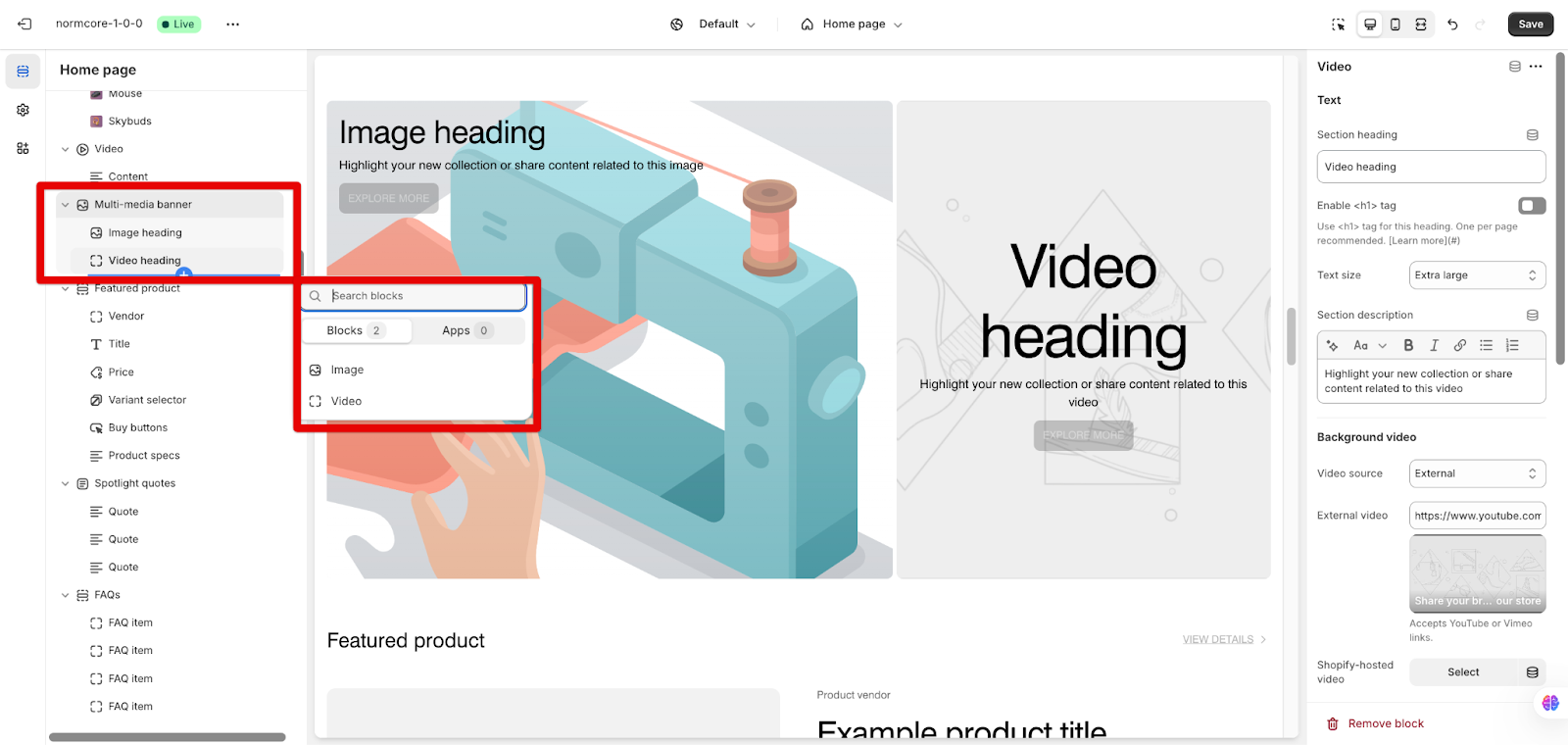
There are 2 types of block you can add to this section. Let’s explore them below:
Image Block
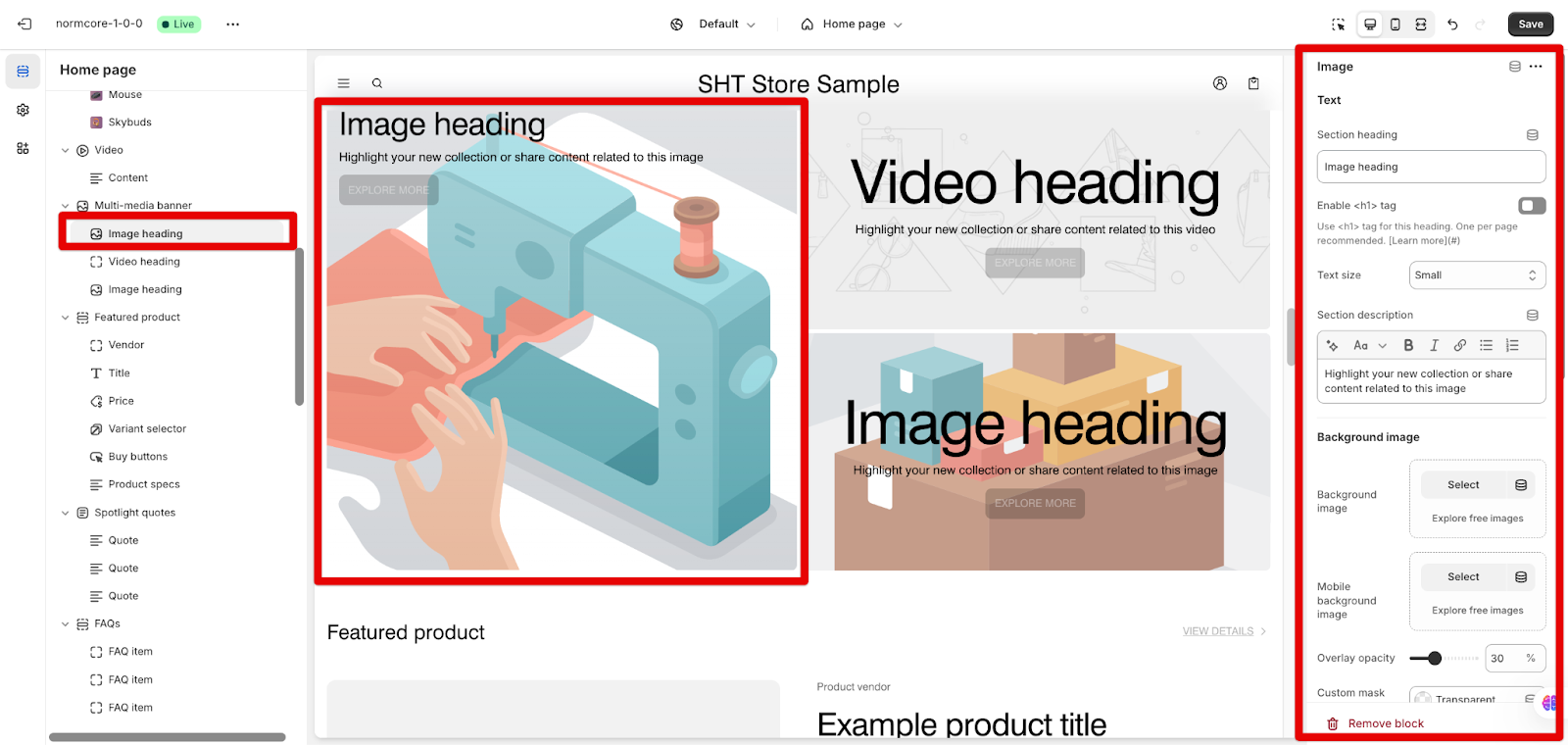
By choosing Image block, you can access the settings below:
Text
In Text, you can:
- Customize the content of the heading and description.
- Enable the use of h1 tag for headings
- Customize the size of the description
Background Image
- You can add different backgrounds for both desktop and mobile layouts.
- There are custom style overlay options, colors for each image title
Layouts
On Normcore, you can configure for 2 types of screen resolutions:
- Desktop layout: Content position, Content alignment.
- Mobile layout: You can set separate values for mobile as same as desktop
Buttons
In Buttons, you can:
- Customize the content and styles of each button
- Customize the link of each button
Video Block
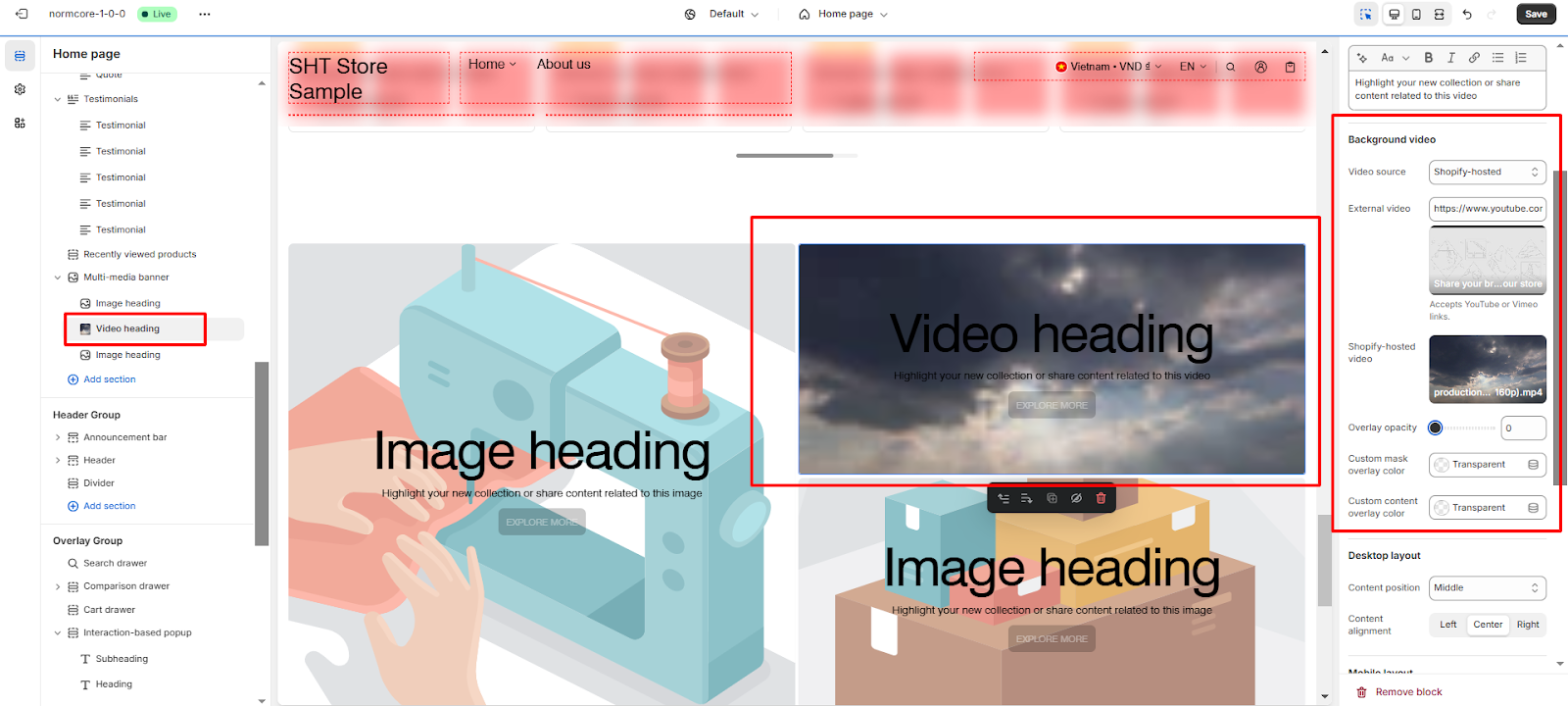
The Video Block settings, including Text, Layouts, and Buttons, are similar to the Image Block (above), with one key difference Background Video here you can:
- You can add videos uploaded to Shopify, YouTube, or Vimeo video.
- Customize the overlay with styles and colors for each video title.
Common Cases and FAQs
1. How can I add more than one button inside a slide?
Currently, we only support 1 button element by default, and if you need to add more buttons, please contact our Support team.
2. How do I remove a button from a slide?
To remove a button, simply delete the text in the button label field in the Button settings card.
3. What are the tips to make the Image banner look better?
You should upload images that are sized appropriately for the layout you are arranging.
Updated on: 19/10/2026
Thank you!